
You’ve matched with someone on Tinder. The photos are great, the bio is charming, and the conversation is flowing — but something feels slightly off. Maybe they dodge video calls, or their story doesn’t quite add up. Before you invest more time, there’s a simple way to check whether the person behind those photos is who they claim to be: a reverse image search.
Tinder doesn’t have a built-in way to do this. There’s no button on the app that lets you check where else a photo has appeared online. Instead, you need to save the photo and run it through a separate tool. This guide walks through exactly how to do that, using both free search engines and a purpose-built identity verification tool, so you can tell a real match from a stolen-photo scam before you get attached.
What Is a Reverse Image Search on Tinder, and Why Does It Matter?
A reverse image search flips the usual search process. Instead of typing words into a search bar, you upload a photo, and the tool scans the web for that same image or visually similar ones. If a Tinder photo turns up on a modeling site, a different dating app under another name, or a stranger’s Instagram, that’s a strong sign the profile in front of you isn’t genuine.
This matters because photo theft is one of the most common tactics behind romance scams. A scammer doesn’t need to fabricate a face from scratch; they just need to lift a few flattering photos from someone else’s public profile. According to the Federal Trade Commission, romance scams cost people in the US over a billion dollars in a single recent year, and it typically starts with exactly this kind of stolen-identity setup. A two-minute image check at the start of a match can save weeks of wasted conversation, or worse.
Step 1: Save the Tinder Photo the Right Way
Before you can search anything, you need a clean copy of the photo on your device.
- Open the match’s profile and find their clearest, front-facing photo. Avoid group shots, sunglasses, or heavy filters — these reduce accuracy.
- On iPhone, press the side button and volume-up button at the same time to capture a screenshot. On Android, press the power and volume-down buttons together.
- Crop the screenshot so it shows only the photo — cut out Tinder’s interface, the match percentage, and any text overlays.
- Save the cropped image somewhere you can find it quickly, like your Photos app or Downloads folder.
A single well-lit, uncropped face gives every method below a better chance of returning useful results.
Method 1: Google Lens or Google Images (Free)
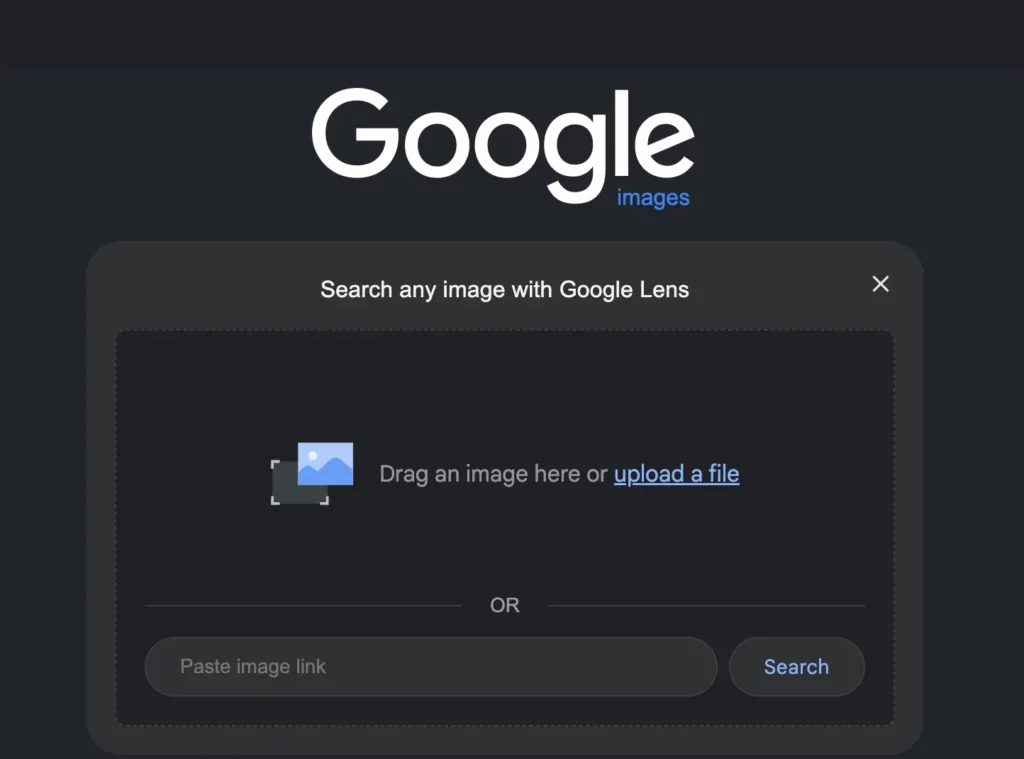
Google’s image tools are the fastest starting point and cost nothing.
- Go to images.google.com on a desktop browser, or open the Google app and tap the camera icon (Google Lens) on mobile.
- Upload the saved Tinder photo.
- Review the “visually similar images” and any matching web pages Google returns.
- Click through to any pages that show the same face to see where else the photo appears.
Google is strong at catching photos lifted from public web pages, blogs, and news sites. It’s noticeably weaker once a photo has been cropped, filtered, or flipped, so treat a “no results” outcome as inconclusive rather than a clean bill of health.
Method 2: TinEye (Free)

TinEye works differently from Google — it specializes in tracking the exact image file across the web, including resized or slightly edited versions.
- Visit tineye.com.
- Click the upload icon and select the Tinder screenshot.
- TinEye returns a list of every site where it has indexed that image, sorted by the date each version was first seen.
TinEye is genuinely useful for catching stock photos and images stolen from older, indexed pages. Its limitation is scope: it only searches images it has already crawled, so newer social media uploads or private-platform photos often won’t show up at all.
Method 3: Verify with Searqle (Photo, Email, or Phone)

Free search engines are a solid first pass, but they weren’t built to identify people — they were built to find matching pixels. If Google and TinEye come back empty, or you want a faster, more complete answer, that’s where a dedicated identity search tool like Searqle fits in.
How it works: Searqle takes the photo, email, or phone number you provide and cross-references it against public records, social media profiles, and online data sources to compile a single report. Instead of manually clicking through scattered search results, you get one organized summary showing where that photo, email, or number is connected online — including names, social profiles, and other public details tied to it.
How to get started:
- Go to Searqle and choose the photo search option.
- Upload the same Tinder photo you saved earlier.
- Wait while the platform scans public and online sources for matches.
- Review the report, which can include a full name, age, known aliases, social media accounts, and other public records connected to that photo.
Because Searqle also supports email and phone number lookups, if your match shares a number or email address later in the conversation, you can run that too — cross-referencing multiple details gives you a far more complete picture than a photo check alone.
How to Read Your Reverse Image Search Results
A search result on its own doesn’t tell you much until you interpret it correctly.
- The same photo on a different name or profile: This is the clearest red flag. It usually means the photo was taken from someone else and reused.
- The photo linked to a modeling portfolio, stock site, or influencer account: Common with scam profiles that pull attractive, professional-quality images to attract matches.
- No results at all: Not proof the person is real — it may just mean the photo hasn’t been indexed anywhere else online, or it’s genuinely unique to their accounts.
- Matching social profiles under the same name they gave you: A good sign. It suggests a consistent, traceable online identity rather than a fabricated one.
Treat any single result as one data point, not a final verdict. Combining an image search with a name, email, or phone lookup gives a much clearer answer than any single method alone.
Red Flags That Signal a Fake or Catfish Tinder Profile
Beyond the photo itself, watch for these common warning signs:
- Generic or oddly formal names that don’t match their claimed background or nationality
- No linked Instagram, Facebook, or other social accounts, or accounts that were created only weeks ago with almost no activity
- Consistent excuses to avoid a video call or in-person meeting
- A backstory involving overseas work, military deployment, or a sudden financial emergency
- Compliments and shared interests that feel scripted or arrive unusually fast
- Pressure to move the conversation off Tinder and onto text or another app almost immediately
One or two of these alone might be nothing. Several together, combined with a photo that turns up elsewhere online, is a strong signal to stop and verify before going further.
Free Tools vs. Paid Verification: Which Should You Use?
Both approaches have a place — the right choice depends on how much certainty you need.
| Criteria | Google Lens / TinEye (Free) | Searqle | Other Paid Tools (e.g., Social Catfish, CatfishLens) |
|---|---|---|---|
| Cost | Free | Trial from €1.00, then subscription | Subscription-based |
| Searches image, email, and phone in one report | No | Yes | Limited — often image-only |
| Consolidated report (name, aliases, social profiles) | No — manual link-checking required | Yes | Yes |
| Works on cropped or filtered photos | Limited | Better, due to broader source matching | Varies by tool |
| Setup time | Instant | Under a minute | Under a minute |
| Best for | A quick first check on a suspicious photo | A single, organized report covering photo, email, or phone | Users who only need image-based checks |
Free tools are the right call when you just want a fast gut-check before a first message. Searqle is the better fit once you’re already invested in a match and want one clear report instead of several scattered browser tabs — especially useful if you also have an email address or phone number to cross-check, not just a photo.
What to Do If You Confirm a Fake Profile
If your search turns up a match under a different name, or a report flags inconsistencies, act on it rather than confronting them directly.
- Stop responding. Don’t tip them off that you’re investigating — scammers are practiced at talking their way out of suspicion.
- Screenshot everything. Save the conversation, the photos, and any personal details they’ve shared, in case you need to report it later.
- Report the profile inside Tinder. Use the in-app “Report” option on their profile so the platform can review and remove it.
- Unmatch and block. This cuts off their ability to message you further.
- Report financial loss, if applicable. If money, gift cards, or financial details were exchanged, file a report at ReportFraud.ftc.gov and contact your bank.
If you’re still unsure after the initial photo check, running the same photo — or an email or phone number they’ve shared — through Searqle can confirm whether the inconsistencies you noticed connect to a real, traceable identity or a dead end.
Frequently Asked Questions
No. Reverse image search happens entirely outside Tinder, using a separate tool or website. The person you’re checking is never notified.
Yes. You’re checking a photo that’s already public on their profile, using publicly available search tools. It’s a common, legal step in verifying an online match.
It usually means the photo hasn’t been indexed by that particular tool, not that the person is verified as real. Try a second method, or search using a different photo from their profile.
Yes. The same screenshot-and-upload process works for any dating app, since you’re searching the image itself rather than something specific to Tinder’s platform.
As early as possible — ideally before you share personal information or agree to meet. A two-minute check at the start of a match costs far less than weeks invested in a fake relationship.
Final Thoughts
Tinder doesn’t give you a built-in way to reverse image search a match, but the workaround takes only a few minutes: save the photo, run it through Google or TinEye for a free first pass, and use a tool like Searqle when you want one clear, consolidated answer instead of several inconclusive searches. Pair the image check with the red flags covered above — an inconsistent name, a missing social footprint, a reluctance to video call — and you’ll catch most fake profiles before they cost you time, trust, or money. A reverse image search on Tinder isn’t about being paranoid; it’s a routine safety habit, the same as locking your front door.
More Helpful Articles
- How to Do a Tinder Profile Search — Learn how to search for someone’s Tinder profile by name or photo, even if you don’t have their exact username.
- How to Search Dating Sites by Email — Find out which dating platforms an email address is registered on, useful when a match’s story doesn’t add up.
- How to Find Dating Profiles by Phone Number — Trace a phone number back to any dating profiles connected to it, and cross-check it against what your match has told you.